How to Add Your Gemini API Key
Use your own free Google Gemini API key to unlock unlimited AI prompt enhancements, higher throughput, and rapid resume tailoring.
Get Your API Key from Google AI Studio
Click the button below to open Google AI Studio — that's where you'll create and copy your free Gemini API key.
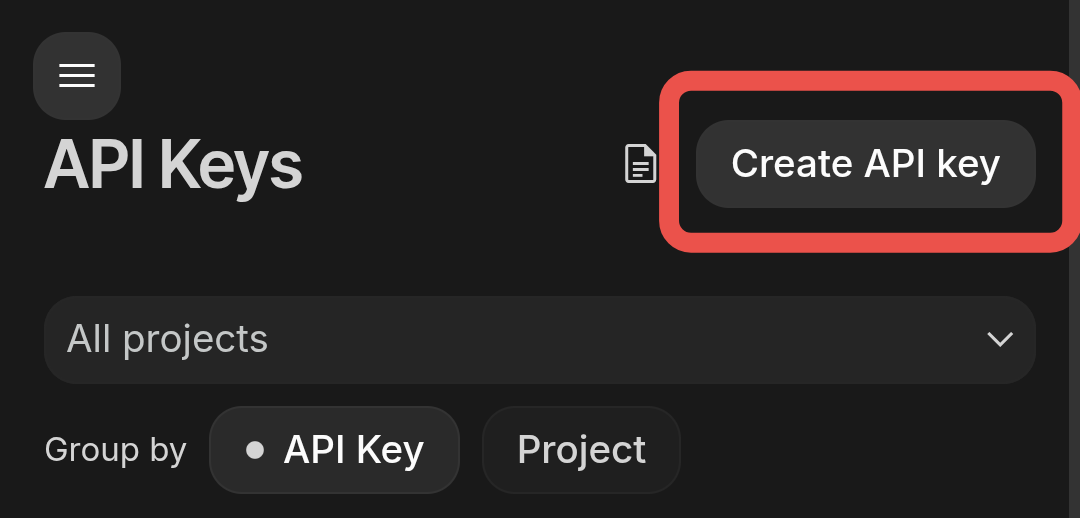
Click 'Create API Key' in Google AI Studio
On the API Keys page in Google AI Studio, click the 'Create API key' button in the top right.
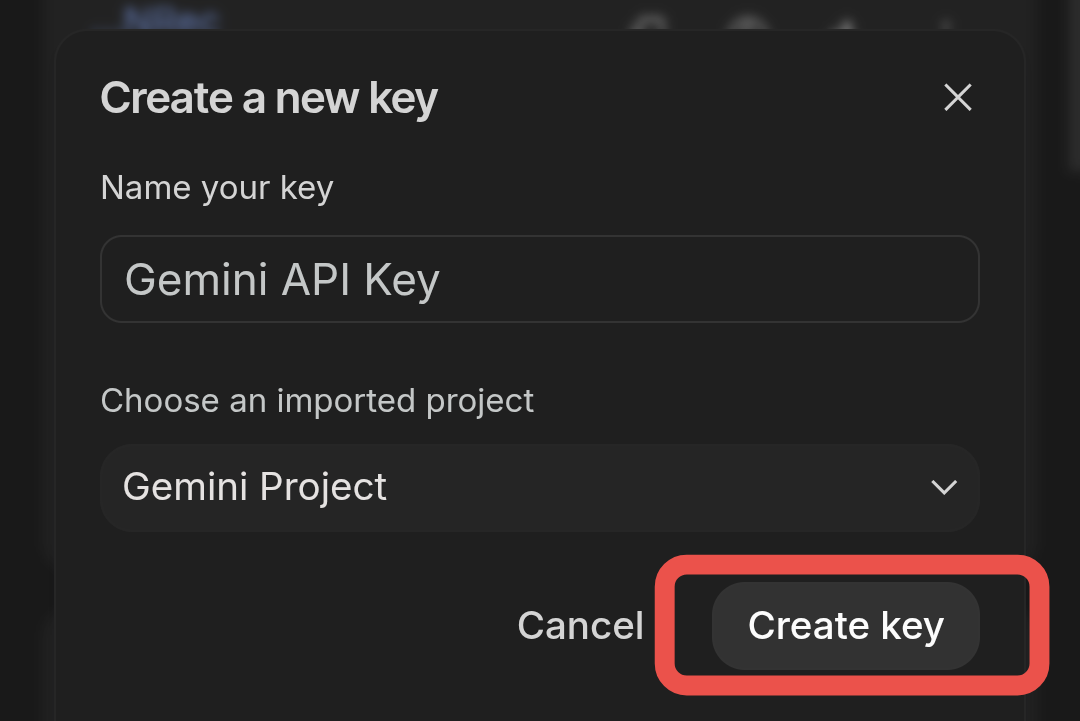
Name Your Key & Select a Project
Enter a name for the key (e.g. 'ResumeAI Gemini Key'), choose or create a Google Cloud project, then click 'Create key'.
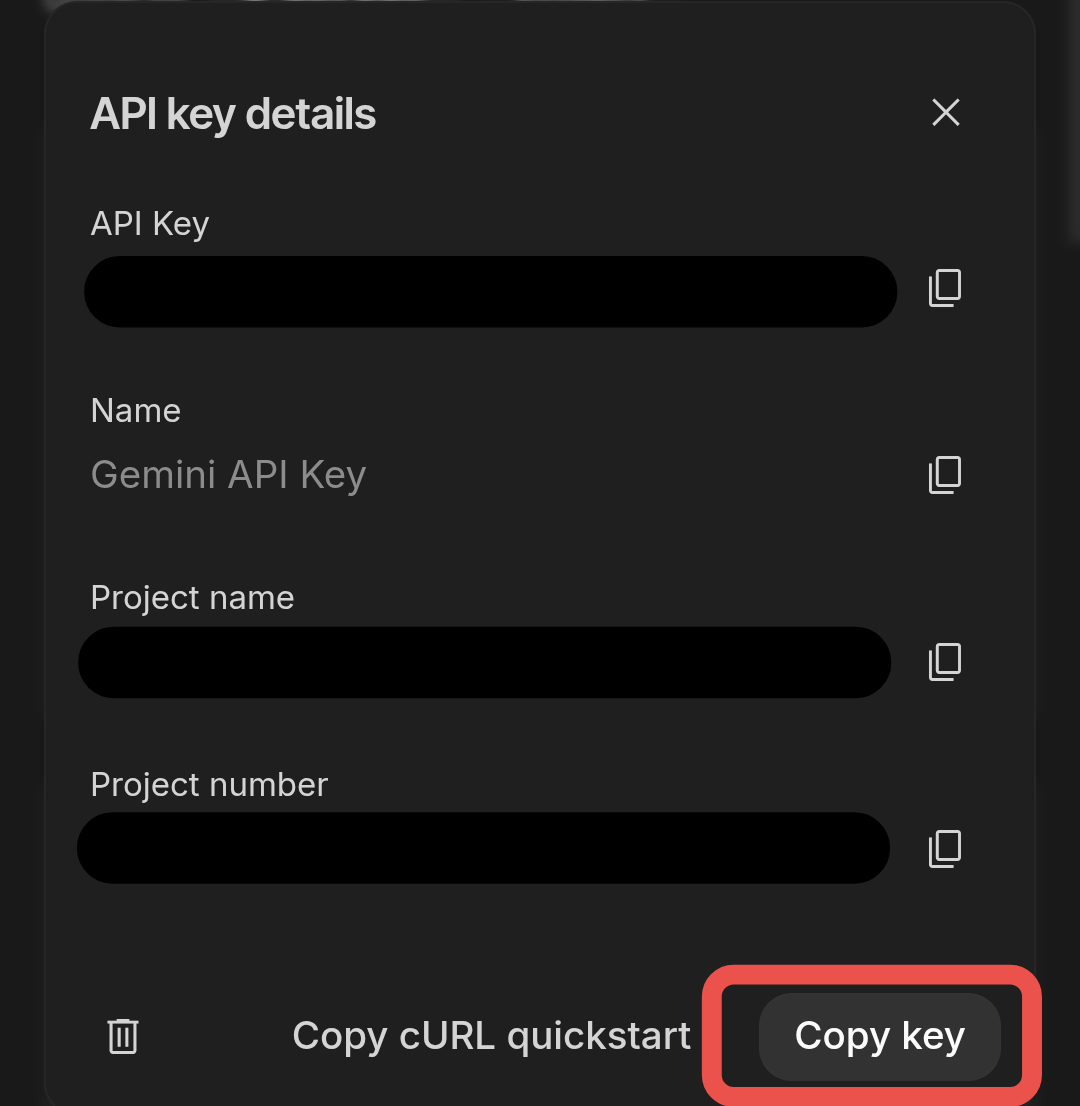
Copy Your API Key
Your key is ready. Click 'Copy key' at the bottom right of the dialog. Keep it secret — don't share it publicly.
Paste the Key into ResumeAI & Save
Paste the copied key into the configuration field below, and click 'Save Config'.
Privacy First
Privacy First
Your Gemini API Key is saved securely to your user account. We never share or expose your keys publicly.
You're All Set!
Your Gemini API Key is linked securely to your ResumeAI account. Jump straight into the interactive workspace to build or tailor your resume.